Showing posts with label Product. Show all posts

Thursday, 29 March 2007

Final Redesign

Our final design attempts to address the majority of issues that arose from our first two prototype stages. We will separate this into individual sections below:

HARDWARE

The key issues that arose here were that the initial size of the netbox unit meant that people could not fit the unit underneath their television set. We have therefore made netbox slimmer, to achieve this outcome. We also want to offer the user achoice of colours, as this seems to be important to people too. Therefore the final netbox unit will be available in two colours, silver and black.


INPUT DEVICE

The key issue here was that people had considerable difficulty typing text using the original remote control. We original mobile phone style text input design proved too troublesome for older users who were largely unfamiliar or inexperienced with this method of input. We therefore redesigned the remote for prototype 2 and offered the user a wireless keyboard for typing. From prototype 2, the preferred remote control was the one using the touch pad to navigate across the screen. We therefore decided to choose this style for the final design, however, we wanted to go back to our original aim of having one input device. We therefore chose to have a thin, minimalist keyboard as part of the remote control, which is accessible by pulling out the keyboard from the side of the remote control. This feature was inspired by new technology reported here:

http://news.bbc.co.uk/1/hi/technology/6345869.stm


Touchpad navigation with bottom 'select' button,
built-in voice recognition and scroll out mini keyboard.

SOFTWARE

The original software used in the first prototype was well recieved. People particularly liked the new way that internet pages were displayed using the simplified format we introduced. For the final design, we have:
  • Introduced an on-screen video companion that can guide people if they are having trouble. This feature is fully customisable, in that the person can be changed, as well as their voice, or the feature can be turned off completely. This improves the overall user experience by making access to all of the netbox features through this guide and provides users with a friendly 'person', with whom they can interact, rather than just being faced with a succession of text-based menu screens.
  • The user can asks questions to the video companion through talking into the remote control. The video companion responds through the TV output speaker.
  • The main menu used numbers from the keypad in the original. These have been removed because people preferred to use the controller to navigate through the menu.
  • We have also introduced a new graphical interface resulting in a more intuitive, user friendly display.
  • We have changed the email application to allow easier access to the individual's account.
  • We changed the chat login name to be the same as the email name.
  • Chat software now allows users to talk to each other directly, as well as providing speech to text functionality so that conversations can be transcribed for those who are deaf or hard of hearing.
A demonstration of the improved menu system, featuring the video guide, is available by selecting the link below.

Tuesday, 27 March 2007

Prototype 2 - Input Devices

Prototype 1, left, with Prototype 2 redesigns

The aim of prototype 2 is to address the major issue that arose from testing of prototype 1, which was the fact that people found it extremely difficult to input text into their netbox remote control. As this is the key fundamental aspect of the netbox product, we have concentrated the whole prototype 2 to addressing this issue.


Our aim in designing netbox is to have a final product that is highly intuitive - that is a user can pick up a netbox product and get it working with very little instruction. In our initial design, we wanted to adopt a minimalist approach to the number of hardware items required to use netbox, which is why we decided that a mobile phone text style system for typing would be good. However, we didn't really anticipate that it would be such a barrier for an elderly person to overcome.

So, for prototype 2, we have introduced a separate keyboard to allow for typing and this will be tried out along with several new remote controls. The aim of using several remote controls is to determine which one is the easiest and most comfortable to use. We found that our original controller was cumbersome, with people finding it hard to navigate around the screen due to the restricted movement option. So, in designing our new remote controls, we have tried to introduce more free flowing movement around the screen.

Finally, we wanted to explore the option of removing the need for a keyboard by introducing a voice controlled typing mechanism, or 'Talk Type', that allows the user to input text into netbox by using their voice alone. This is facilitated through the means of a microphone incorporated into the remote control handset.

  • Wireless keyboard

  • Remote control 1: Rollerball. This contains a rollerball that allows the user to scroll quickly and efficiently around the screen. We believe that this is an improvement on the up, down, left, right control from the initial remote.

  • Remote control 2: Touchpad. This contains a touch pad that allows the user to move their thumb or finger across a touch pad on the remote control to position the cursor on the screen. Again we believe this is a better option.

  • Remote control 3: Standard Button with Wii-style motion sensing. This is a completely interactive remote control and as it employs the 'wii'-style system of pointing to the screen where you want the cursor to be placed.
The built-in microphone, incorporated in to each handset, allows the user to be able to 'talk type' text input into their netbox.

Saturday, 3 March 2007

Netbox: Input Device


Despite having conceived of numerous possible prototypes for an input device, we decided that familiarity would, at this stage, be the most important aspect. We therefore opted for a remote with functions that would reflect those of a conventional TV/Sky device. At this stage the essential functions that our input device/remote provides are:

  • The ability to replace all other remotes that require the use of the TV (e.g. the normal TV, DVD, Video and Sky remotes). It's keypad therefore provides such functionality.

  • 'Arrow button' navigation with a central 'Select' button. This works in the way of a conventional remote: menus can be navigated via the arrow buttons and options selected via the 'Select' button.

  • A telephone/mobile phone style keypad which permits alpha-numeric input (see diagram). Such functionality will provide the means by which text input is achieved (for chat and e-mail facilities).

  • An easy-access 'Menu' button that, when pressed, results in Netbox's main menu being displayed on-screen.

  • An 'Favourites' button for use with the internet. This will allow users to select, access, and bookmark favourites at the touch-of-a-button.

  • A 'Communicate' button that provides a quick shortcut to Netbox's communications facilities (chat and email).

Friday, 2 March 2007

Input Device Musings (Concept/Physical attribute Prototypes)

Input and output devices have a very significant role in any product. This is mainly because these two components directly interact with the user. It is fair to say I/O devices provide a "vessel" for the user's experience. Very often product designers get things wrong because insufficient attention is paid to designing I/O devices. In this post I would like to concentrate on the design of certain aspects of an input device.

Let us start by considering some of the commonly used devices today.

  • Mouse
  • Keyboard
  • Joy Stick
  • Touch pad/screen
  • Light pen
  • TV Remote

Of course this list is by no means exhaustive, but my point is that there is a large variety of input devices available which are there to serve different groups of users. For example a joy stick is mainly there to assist the gaming community; it gives the user an increased manoeuvrability. Likewise, at each stage of building prototypes, it would be wise to identify a user-centred requirement that we wish to address.

For the first prototype, the user centred requirement I wish to address is "Familiarity". It seems to me that through the personas we created as well as from other research documents, that older people in general find it difficult to adapt to new technologies and most of the time they feel intimidated and frustrated dealing with hi-tech gadgets.

Therefore, an input device should be something familiar to the users and from the list above the obvious option is the the TV remote controller. Of course not all of the 60+ people are familiar with all the function keys available in an average remote controller. But undoubtedly they all are comfortable at least with the physical attributes of a remote controller i.e. shape, weight...etc. This a perfect place to start.

It must be pointed out at this stage we can assume that our "NetBox" has its own remote controller (input device), at a later stage we can consider an integrated input device that can be used both for the normal TV functions as well as NetBox functions.

After researching several popular remote controllers the following physical attributes were identified as key.

  • Width: 5 - 8cm
  • Length: 12 - 24cm
  • Height: 1 - 3cm
  • Weight: 25 - 75g

The colour of the remote controllers vary hugely but most popular ones are white, silver, gray and navy blue. Presently the outer cover of a remote controller is made of plastic or rubber. In parallel with the existing remote controllers at least for a primary prototype the power is supplied by 2 or 3 1.5V batteries.

I have thought that we could perhaps present a few potential users with an initial prototype in order to determine the best physical attributes. Perhaps it would be something along the lines of the following:


A questionnairre that could help us determine the optimum attributes that people are comfortable with, could be the following:

Input Device Questionaire

Question1:

What colour is your TV remote controller (not the button colour)?

  • Black
  • Dark Grey
  • Dark Blue (Navy Blue)
  • White
  • Silver
  • Other - please specify

Question2:

Is the colour of your remote controller important to you?

  • Yes
  • No

Question3:

How wide is your remote controller?

  • 1 - 4cm ( 2 inches or two fingers)
  • 5 - 8cm (2 - 3 inches or four fingers)
  • 9 - 12cm (4 - 5 inches)

Question4:

How long is your remote controller?

  • 1- 10cm(1 - 4 inches)
  • 12 - 24cm (5 - 9 inches)
  • over 24cm (over 9 inches)

Question5:

How thick is your remote controller?

  • 1 - 3cm ( 1 inch)
  • 4 - 6cm ( 2 - 3 inches)
  • Over than 6cm (over 3inches)

Question6:

Do you find the size make it easy for you to use the remote controller?

  • Yes
  • No

Question7

How often do you change batteries?

  • Once a week
  • Once a month
  • 2 - 3 months
  • Never

Question8:

Do you have buttons on your remote?

  • Yes (Answer 8A)
  • No (Go to end)

Question8A:

What shape are the buttons on your remote?

  • Square
  • Triangle
  • Circle
  • Other - Specify

Question 8B:

How big are the buttons on your remote?

  • Size of a green pea
  • Size of a marble
  • Size of a tennis ball
  • Other - please specify

Question 8C:

Does the size of the buttons make it easy for you to use the remote?

  • Yes
  • No

Question 8D:

What would you say about the size of your buttons?

  • Too small
  • Perfect
  • Too big

Question 8E:

What would say about the feel of the buttons?

  • Too hard to press
  • Perfect
  • Too soft
Question 8F:

If you were to replace the button based remote with one of the following, which one will you choose?

  • One with a touch screen
  • One with a roller-ball
  • A Laser pointer
  • Computer Mouse
  • Electronic writing pad
  • Voice recognition device
  • I am happy with my button based remote
  • None of the above (please give reasons)
Thank you very much for taking time to fill this questionnaire!

The next stage of designing the input device would be to add functionality to the remote controller. This depends mainly on the content available for the user to interact with.

Monday, 26 February 2007

Netbox: Product Software

When the NetBox is switched on, pressing "Menu" will enable the user to access the NetBox main menu. This will override the signal received from their standard television reception. The software allows the user to select one of three options from the main menu by pressing the corresponding number on their remote control keypad:

  1. Surf the web
  2. View your email
  3. Chat and socialise

Alternatively, the user can press the star button, which provides a short cut to their stored web "favourites" or the speech bubble, which provides a short cut to email and chat. Each menu screen provides a consistent look and feel to aid familiarity and usability.

Surf the web

The NetBox user may surf the web by either entering the full web address / URL of a website and selecting "Go", entering keywords into the NetBox search engine and selecting "Search" or by selecting "Go to Favourites" which will let them access their list of stored/bookmarked favourite websites. They may also select "Back" to return to the previous screen / main menu.

The user enters text into the text fields by using their remote control keypad, moves between text fields and on-screen buttons by using their 4-way directional arrow navigational buttons, and makes a selection by pressing "select" on their keypad.


Information (Directgov: State Pensions and Benefits)

The Netbox product will contain innovative software that enables the user to define and customise the way in which web content is displayed. By way of a simple options menu, the elderly user will be able to easily switch between the original design of the website, a set of default design templates or their own user-defined layout design. The options menu will also allow the user to store their preferred layout design so that this is remembered for each and every website that is viewed, even when the Netbox has been turned off for a considerable amount of time.

The usability benefits, of this user-defined approach to web content presentation, are as follows:

  • Consistent layout and presentation of content
  • Uniform font sizes, colours and styles
  • Ability to change colour schemes and text size to suit needs of the user (RNIB Web Access Centre – FAQs)
  • Easily identifiable web links across all pages and sites
  • Assists in ensuring websites are accessible to blind and disabled users (Disability Discrimination Act)

Further examples

Special Interest (MSc HCI 2007 Blog)

Information, Support & Advice (Age Concern: Age Discrimination)

Information, Support & Advice (Help The Aged: Elder Abuse)

News (MSN News & Weather)

View your email

The user is required to enter their email address and password in order to view their emails (e.g. norman85@netbox.com). As before, the user uses their navigation buttons and select button to move around the on-screen options (or by pressing the corresponding numerical option on their keypad, e.g. 1, 2 or 3).


Each screen is clearly laid out and intentionally simple. The NetBox does not allow users to send attachments but does enable them to select an existing contact from their email address book (should any be stored).

Chat and socialise


The first time a user enters chat they will be presented with a screen asking them to 'enter chat name'. Using the number buttons on the remote remote control, they will type the name they wish to be known by (this can be changed at a later date if necessary). Whatever they type will automatically appear in the 'Name?' box/field. The buttons work like a mobile phone: pressing '1' once will enter 'a'; twice will enter 'b', and three times will enter 'c'. The characters are therefore selected by using the appropriate number buttons. If a mistake is made, the user can press '*' to delete. This will delete one character per depression of '*'.Once a name has been entered, simply pressing 'Select' on the remote control (see diagram) will enter this as the user name. If the name is not available, 'Name already taken by another Netbox user - Please choose another name' will be displayed. Once the user has chosen a valid name, they will be asked to provide a password ('enter password'). They do so by using the keys on the remote control, followed by 'select'. The password will appear as they type and they will be instructed to 'Choose something that you can remember'.The user then navigates to 'send' using the arrow keys, and pressing 'select' will be greeted with the message 'Thank you for logging-in to Chat'.

Using Chat

The user is presented with a screen that has a large main 'window', a smaller 'compose' window below this, and 3 options (along the bottom of the screen):

  • Users
  • Rooms
  • Exit to Main Menu

The Main Window

This is where messages appear. Entering text into the smaller window/field (see below)followed by 'send' will result in it being displayed in this main window. Any comment that is made will be preceeded by the user's name. For example: 'Mark Smith Says: Hello everyone, I'm new here. Can anyone tell me what they like about Netbox?' To post a message, the user must use the smaller 'compose' window located below the main window.

The Compose Window

This is where messages are composed. To navigate here a user must utilise the arrow buttons on the remote (although by default, this is already highlighted).As with other windows/boxes/icons, the 'compose' window will be highlighted in blue when it is selected. To type a message, the user utilises the method outlined earlier. Navigating to 'send' via the arrow buttons, followed by depression of 'select will send the message, thereby displaying it in the main window. Any responses to messages will be displayed in the main window.

Users

Using the arrow keys to highlight 'users', followed by 'Select' will provide a list of people/users currently using Netbox chat.Pressing the up and down arrows on the remote control will highlight an individual user. To chat to a highlighted user, the user must press the large circular 'Select' button on the remote, located between the arrow buttons. This will in turn highlight the 'compose' window from where a message can be typed (via the method outlined above). To send the message, the user must navigate to 'Send' using the arrow buttons on the remote. The message will then appear in the main window (which is now acting as a private window between the two users). If any mistakes are made while typing, the '*' key can be used to delete any text. To exit chat, navigate to 'Exit to Main Menu' via the arrow keys on the remote, followed by 'Select' (once the icon is highlighted). This will return you to Netbox's main menu.

Rooms

Using the arrow keys to highlight 'Rooms', followed by 'Select' will display a list of rooms.To enter a room, the arrow buttons are used to highlight the room. The remote button 'Select' is then pressed in order to enter the room. Room names relate to particular topics. Individual rooms function in the same way as the main chat screen.

Exit to Main Menu

A user navigates to here by using the arrow keys. Pressing 'Select' will then exit to the main Netbox menu.

Netbox: Hardware Prototype

The basic features of netbox are to be able to access the internet and perform most of the tasks that a standard pc can whilst connected. This will include web browsing, email, download files, video messaging, voip, etc. However, the basic user may only wish to browse web sites or use email, and so we need to provide a hardware design that caters to the basic user. When designing the hardware, several considerations must be made.

  • A non-threatening design - the hardware does not have a multitude of sockets or ports that will intimidate the user.

  • Is it easy to set up?

  • Is it easy to use?

  • What additional features will be used, e.g. USB ports, memory card readers, webcam, etc.

  • Where will the additional features be placed?
We want the basic netbox to be as plain looking as possible, to provide an unintimidating user experience. We feel it is important to keep the front of the box with just the essential features, i.e. power button, and anything else hidden out of sight. However, additional features need to be readily accessed, so we decided to put these features on the front of the box, but hidden by a flap.

In order to provide easy setup, we have reduced the number of cables needed to a bare minimum. The essential cables will be a power supply and a television/monitor connector. We have decided to make the netbox connection to a phone line wireless. This means that the user will connect an additional modem directly to their phone socket and this will talk wirelessly to the netbox unit. This should mean that netbox is easier to setup overall. Another consideration is the cables, especially in terms of size, shape and colour. The cables need to be easy to connect and so each cable should therefore have a unique colour and shape, and also be of a reasonable size to allow someone with reduced mobility/sight to use.

Netbox should be plug and play, i.e. once it is connected and switched on it takes the user directly to the browser and they can go from there. There should be no maintainence issues, e.g. anti-virus software, etc, so we decided that each netbox will come with a fixed amount of server storage space, as opposed to having an in-built hard drive. This will provide a worry free user experience.

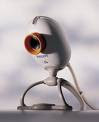
The additional features we decided on were usb ports, so external devices can be connected. We also wanted memory card readers, as a lot of users will have digital camera's, which they may want to send pictures and such via email. These facilities will be placed on the front of the box to enable easy access for the user. We wanted only the device connectors to be located at the back, so once it is connected, it will not need to be moved. We wanted to build in a webcam into the box itself, however, this means that the box will have to be put in a prominent position in order to talk into the camera. This will probably be impractical, as most people will probablt store the box under their television, near the floor somewhere. We have therefore decide to bundle a webcam as a separate unit within the netbox package.


The initial prototype is therefore shown below:

Wednesday, 21 February 2007

Netbox : Product Summary

Netbox is a set-top-box that brings the internet into the home, without the need for a personal computer. Aimed at the older generation who may have limited experience with the internet and/or personal computers, Netbox is a portal that, by using its own unique software, presents webpages in a standardised, intuitive format. For those who may wish to view content in its originally-intended format, this can be done so at the push of a button. Loaded with easy-to-use features, the Netbox packs them all into a neat, compact unit. Anticipated core features include:


  • Internet displayed on TV

  • Chat and Email facilities

  • Switch between conventional display or intuitive, user-friendly interface (achieved by means of proprietary software)

  • Includes unique, patented remote control geared toward intuitive usability

  • Easy-to-navigate menu

  • Gateway to social network

  • In-built telescopic web-cam

  • Server-based memory/Flash memory/Hard Drive (yet to be finalised)

  • Memory card reader

  • USB extension ports

Monday, 5 February 2007

Meeting 3: Initial Product Ideas

The purpose of today's meeting was to reflect upon the issues and attributes identified in our last meeting and to use these as a basis for generating products ideas specific to each age group. Each member of the group brought several ideas to the meeting and these were discussed at length to highlight the potential benefits and drawbacks of each. The most popular ideas are presented below.

Over 60s

Several product ideas were discussed for the over 60s age group, most notably:

Dream Machine

Unfortunately, as time passes memories can fade and it was with this notion that the idea of a "Dream Machine" was conceived. Rather than actually recording the dreams of an individual while asleep, the Dream Machine would record a user's memory and experiences in full moving colour for their own enjoyment and reflection as well as for posterity for future generations, much like camcorders and digital video cameras are allowing us today. Although we were very fond of the 'Dream Machine' idea it was deemed too fantastical given its departure from current technology and so we decided not to explore this idea further.

Personal Digital Assistant (PDA)

A PDA that acts as a personal assistant, serving to remind an individual of appointments made, groceries to buy, birthdays, etc. This would allow those senior members of society, who may have problems remembering recent events, to record ideas, reminders, calendar events and to-do lists in a single, portable and accessible device.

The PDA idea was popular, with the notion that existing PDAs could be simplified by removing complex or redundant functions, such as pocket word processing and spreadsheet software, which are unlikely to be used by the target age group. Instead, the PDA would focus on providing a direct and user friendly means of managing and editing a variety of useful data.

This idea was a strong contender for our final product for this age group, although it was acknowledged that the small screen and input stylus may prove too problematic for those with a visual impairment or limited dexterity. Of course, were this product to be developed further during our project, these issues would be addressed.

Online Social Network

An online social network, similar to MySpace, aimed solely at the older generation. Although Friends Reunited offers the ability to search for old friends, to find out what they've been up to, and the possibility to be reacquainted, we liked the idea of providing a community environment in which the older members of society could make new friends and discuss life experiences with like-minded people.

We considered the fact that many older people can sometimes experience loneliness once their children and grandchildren have grown up and relocated to different cities or, indeed, countries. Mobility problems and financial limitations may also restrict their ability to venture out and meet new friends in different social settings. Furthermore, we considered that all individuals become considerably nostalgic the older they become but may often find it difficult to find others who share these same experiences and memories and with whom they can reminisce.

An online social network would enable older individuals to gain access to a rich community environment in which they can make new friends, provide support, record their memoirs, share stories, discuss memories of war time with others who were there, and possibly be re-connected with acquaintances from long ago. It could also allow them to chat and play online games, such as chess, backgammon, cards and Scrabble, with real opponents from their social network.

Although we liked this idea, we acknowledged that connection to the Internet would require a Personal Computer (PC) or Mac, and that the complicated nature of such devices would be an obstacle for many senior users, with learning how to use a computer (keyboard, mouse, operating system, etc), and the expense of such equipment, being the greatest hindrance to the success of this product idea.

It was with this discussion and realisation at the meeting that we conceived our most popular idea...

TV Internet "Set-Top" Box

The home computer has gained increased popularity over the past decade, arguably due to the falling price of technology, the increased availability of Broadband internet access, and the growing desire of individuals to explore the wealth of information and services available on the World Wide Web (WWW or 'web').

Although web access has been available on mobile devices for some time, including mobile phones, the majority of web users continue to access the internet via desktop computers at either home or work. However, despite this, many users of all ages find computers notoriously bewildering, complicated and difficult to use. For the over 60s the problem is exacerbated when on considers they may not gain the exposure to computers enjoyed by others and in many cases many never consider the need to own one, even if they could justify the expense, despite wanting access to the internet.

Learning to use a computer can be extremely daunting and challenging for the novice, with discovering how to operate basic input devices such as a keyboard and mouse proving almost as challenging as finding one's way around the multi-functional operating system and associated software packages. For many, especially those in the later stages of life, the prospect of learning how to use a computer can be a huge obstacle to gaining access to the internet, discouraging and even preventing them from exploring, and benefiting from, the opportunities presented by the web.

When one also considers the advent of On-demand TV, which will enable popular programmes to be delivered any time via the internet, and the fact that the web also offers a means of cheap/free global communication, older people risk being disadvantaged and left behind as the digital revolution continues.

Through identifying and discussing this problem in detail we conceived the idea of a "set-top box" that would operate as a dedicated, autonomous, internet portal, completely removing the need for a traditional "computer" to access the internet, allowing the elderly to watch On-demand TV, surf and communicate over the web using their standard television set and from the comfort of their own armchair by way of remote control.

As set-top boxes have become increasingly common place in the average home, with many living rooms having Sky/Cable/Freeview boxes, video recorders and DVD players, a dedicated “TV Internet Set-Top Box” would certainly not look out of place amongst existing entertainment devices. Furthermore, it would provide an affordable and simple means through which the over 60s could access the internet with the minimal amount off fuss using just a simple and familiar hand-held interface.

 
Locations of visitors to this page